
Embed the Website Voice Widget
Let visitors talk to your AI agent by voice, right on your website — one click, no phone call.
Available on Integrated AI plans
The website voice widget is available to Integrated AI customers. If you're not sure whether your plan includes it, contact your Yobi team.
The website widget lets visitors have a live, spoken conversation with one of your AI agents directly on the page (it supports both voice and text chat). You generate the embed code from AI Studio and add it to your site — a one-time copy-and-paste.
Setup Instructions
First, Open Your Agent's Config Tab
Go to AI Studio, open the agent you want on your website, and in Configuration click the Connect tab. You'll see the "Connect [your agent] to your channels" screen.
-
1
Open AI Studio and choose your agent
In the Yobi web app, go to AI Studio and select the agent you'd like on your website.
-
2
Open Configuration → Connect tab
In the agent's Configuration, click the Connect tab (alongside Identity, Voice, Skills, and Instructions) to see "Connect [your agent] to your channels."
-
3
Find your website channel
Locate the website channel in the list — it's marked with a globe icon.
-
4
Click "Embed in your website"
Click the Embed in your website button on that row to generate the widget code.
-
5
Copy the code and add it to your site
Copy the generated code and paste it into your website (before the closing </body> tag), or send it to your website provider.
-
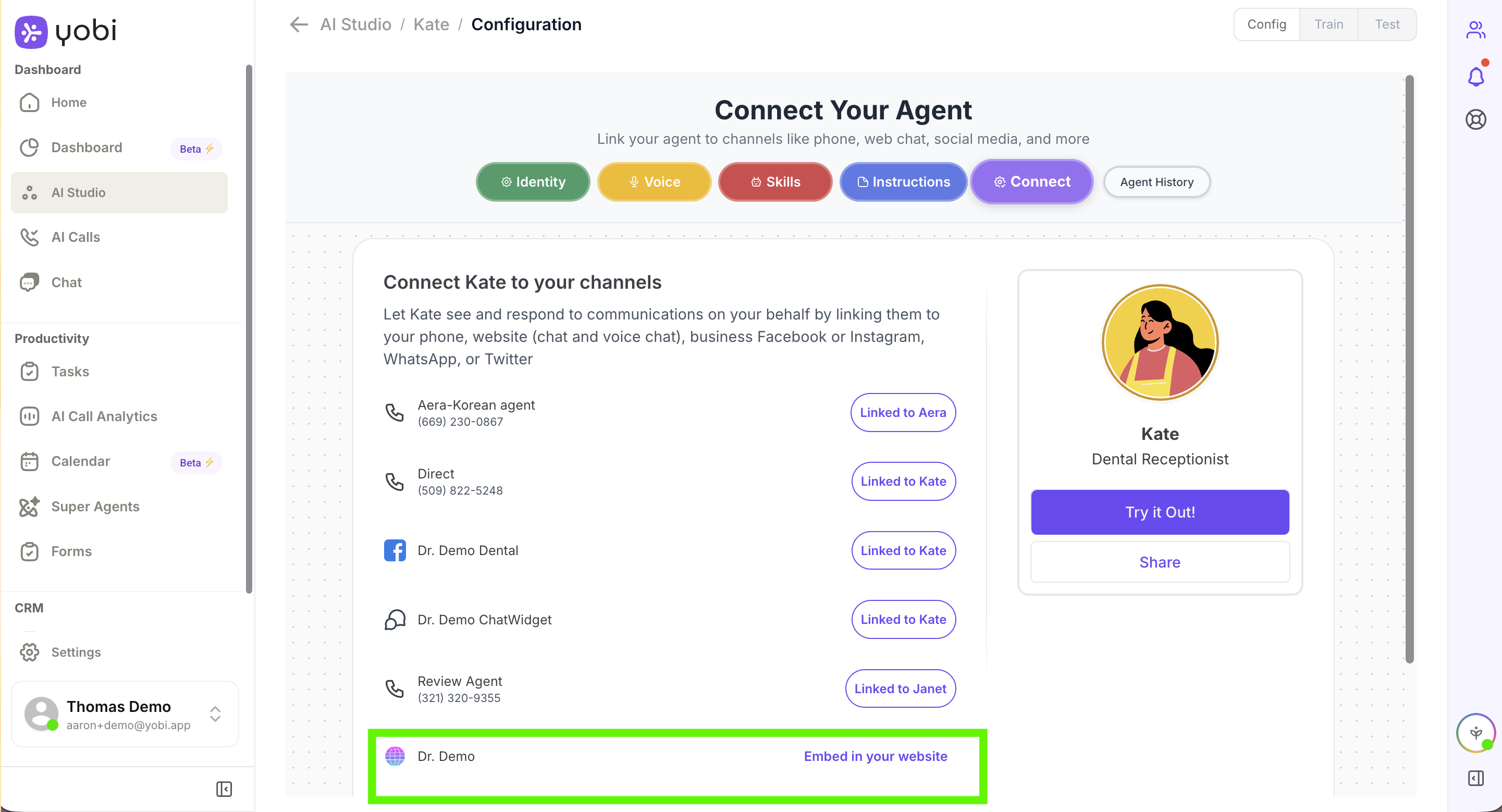
AI Studio → agent → Config → website row → "Embed in your website"
Important Considerations
This Is an On-Site Voice Conversation
The voice widget lets visitors talk to your agent by voice on the website itself. It is not a click-to-call button that routes to your office phones.
Microphone Access Required
Visitors must allow microphone access in their browser when prompted, or the voice conversation can't start.
Want a Dedicated Text-Chat Box?
Yobi also offers a standalone ChatWidget channel (Settings → Channels) if you only want text chat. You can also share your agent by QR code using the Share button on the agent's Config screen.