
Get Your Online Scheduling Link
Share a link that lets patients book themselves 24/7 — straight into your schedule on integrated plans, or via your own booking link on non-integrated plans.
How you get your scheduling link depends on your plan. On an integrated PMS plan, Yobi gives you a hosted scheduling link where patients book directly into your practice management software. On a non-integrated plan, your AI agent sends out your own booking link instead. Both are covered below.
Setup Instructions
Which setup applies to you?
If your practice management software is connected to Yobi (an integrated plan), follow Option A. If not, follow Option B.
Option A — Integrated PMS plan
Yobi gives you a hosted Scheduler URL that books patients directly into your connected system.
-
1
Open your Dashboard → PMS Integration Settings
From your Yobi Dashboard, open PMS Integration Settings ("Configure your online scheduling and appointment management").
-
2
On the General Settings tab, find "Your Scheduler URL"
It's at the top of the General Settings tab and looks like https://schedule.yobi.com/book/…
-
3
Copy the link
Click the copy icon next to the URL (or the open-in-new-tab icon to preview your booking page).
-
4
Share or embed it
Add it to a website "Book Now" button, your email signature, text campaigns, or your Google Business profile so patients can book themselves. Tip: set your Appointment Types and Availabilities (tabs 2 and 3) so the page shows the right options and open times.
-
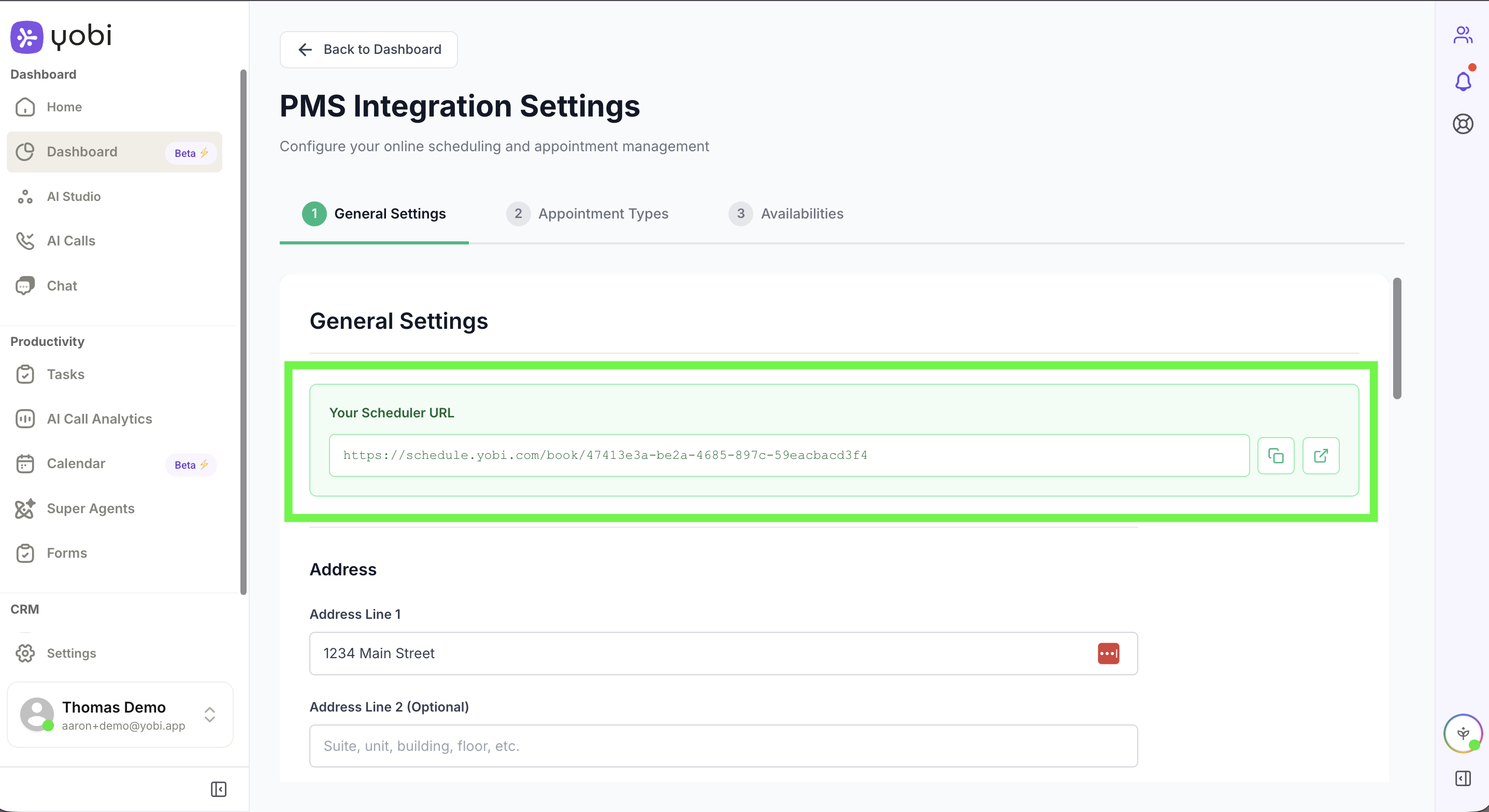
Dashboard → PMS Integration Settings → General Settings → "Your Scheduler URL"
Option B — Non-integrated plan
Use your own booking link (from your scheduler) and have your AI agent send it during conversations.
-
1
Have your booking link ready
Copy your online booking URL from your scheduler, then open your agent in AI Studio.
-
2
Open Configuration → Skills
In AI Studio, open your agent's Configuration, then click into Skills (the red button).
-
3
Add a "Follow Up Text" message
In the Follow Up Text section, add a message and describe when to send it — e.g. "Caller wants to book a cleaning and should be sent our online booking link." Then select or create the template containing your link.
-
4
Save and test
Save, then test in the Test section (or with a test call) to confirm the agent sends the link at the right moment.
Important Considerations
Integrated vs. Non-Integrated
On integrated plans, patients book directly into your PMS through the Yobi scheduling link. On non-integrated plans, the agent sends your own link — it shares the link and handles the conversation, but does not write the appointment into your PMS.
Ask Before Texting Links
To avoid carrier spam blocks, have the agent ask first — e.g. "Would you like me to text you the booking link?" — before sending any URL.
Works Across Channels
Your website chat widget and phone agents can both send the scheduling link.