
How to Forward Mango Voice Calls to Yobi
Complete guide to forwarding your Mango Voice system to Yobi AI agents
Call forwarding is an invaluable feature for maintaining business continuity. Whether you need to leave the office early, handle unexpected closures, or manage internet outages, forwarding ensures your customers can always reach you through Yobi's AI agents.
Setup Instructions
First, Access Your Admin Portal
Navigate to admin.mangovoice.com and log in with your credentials. Once logged in, locate the Switchboard button in the left sidebar menu, then select your specific switchboard from the available options.
-
1
Access Your Switchboard
Once in the switchboard interface, locate the line you want to forward.
-
2
Add External Transfer
Click the + External Transfer box located at the top of your screen.
-
3
Enter Yobi Number
Input your Yobi phone number in the Number field of the External Transfer module.
-
4
Connect the Flow
Click and drag a connection line from the Start node to your newly created External Transfer box.
-
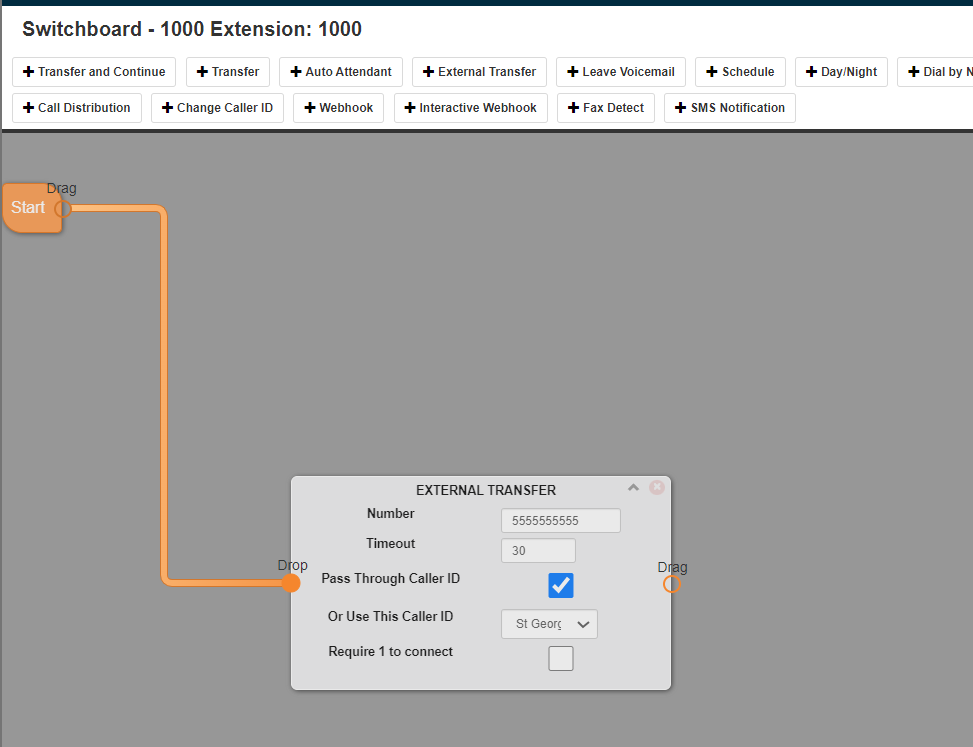
Example of completed call forwarding configuration in Mango Voice switchboard
-
5
Save Configuration
Click the green Save button in the top right corner to activate forwarding.
Important Considerations
Ring Group Behavior
Call forwarding is bypassed when an extension receives calls as part of a ring group. The system will follow ring group rules instead of individual forwarding settings.
Phone Registration Required
Your phone must be active and registered to the PBX for forwarding to work. If the phone is offline, calls will route to the extension voicemail (if configured) or disconnect.
Test Your Setup
Test your forwarding by calling your Mango Voice number from an external phone. Your call should be routed to your Yobi AI agent.