
It is 7:40 pm on a Sunday. A patient of Yobi Smiles calls because the side of her face has started to swell, two days after Dr. Sunny took out a molar. Your AI agent answers, takes down what happened, and books her for 8:00 am on Monday.
Dr. Sunny reads about it in the call log on Monday morning. He would have called her back on Sunday night. He never had the chance.
Your AI agent did its job. The call was answered. It just did not reach anyone.
The problem
Answering every call solved the voicemail problem. It did not solve finding out in time. A call your AI agent handles on Sunday evening waits for you on Monday with every other call from the weekend, and nothing about it says "read me first".
The traditional fix is an after-hours number for the dentist on the closed-office voicemail. The ADA's page on emergency patient treatment still recommends one, and states the duty behind it plainly: "The dentist must be available for patients of record anytime an emergency occurs, no matter when that might be." The trouble with a number on a greeting is that every caller decides what an emergency is. Some will call about whitening at 10:00 pm. Others, in real pain, will not want to bother you.
Most after-hours calls can wait until morning. A few cannot, and you know which. What has been missing is a way to notify the dentist of emergency calls by text, and only those.
The fix: Emergency Text Notifications
You write down, in plain English, the kinds of calls that need your attention. When your team does not pick up and a caller's own words match one of your reasons, Yobi texts the people you chose after the call ends. The text shows who called, their phone number, and when.
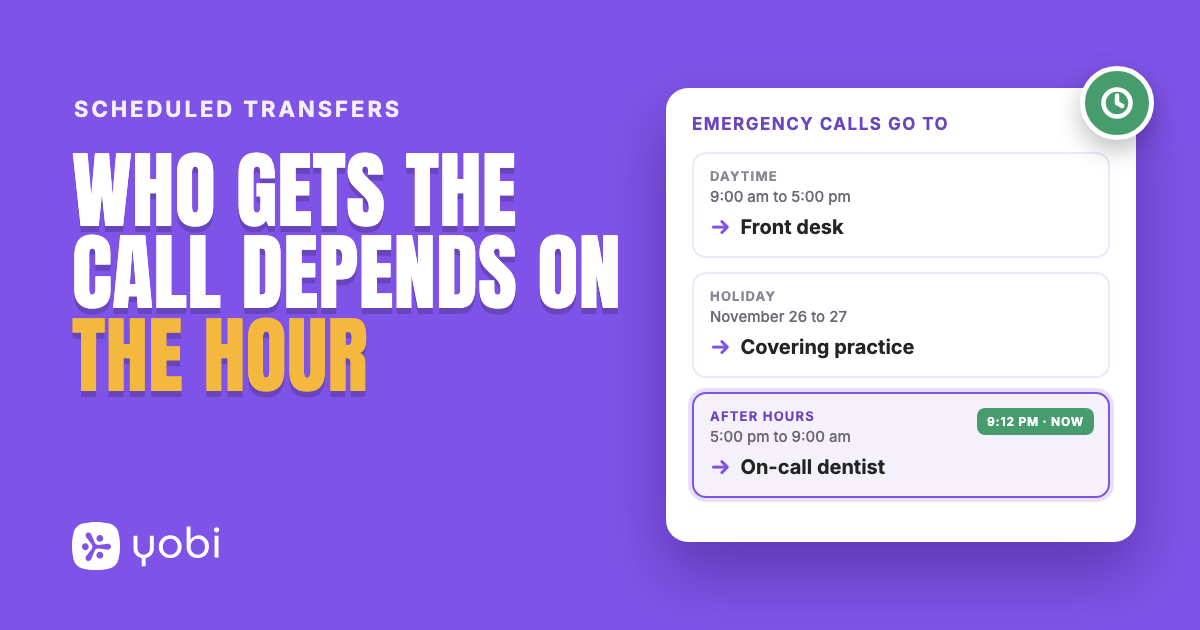
If you use Scheduled Transfers, you already have a way to connect an urgent caller to a person during the call. Emergency Text Notifications is for the calls where that did not happen.
Here is the Sunday call at Yobi Smiles, with the reason "The caller has pain, swelling or bleeding after recent treatment" in place:
Caller: "Dr. Sunny pulled a tooth on Friday, and now my cheek is swelling up and it is throbbing."
AI agent: "That needs to be looked at soon. The first opening I have is tomorrow at 8:00 am. Shall I book it for you?"
Caller: "Book it. Thank you."
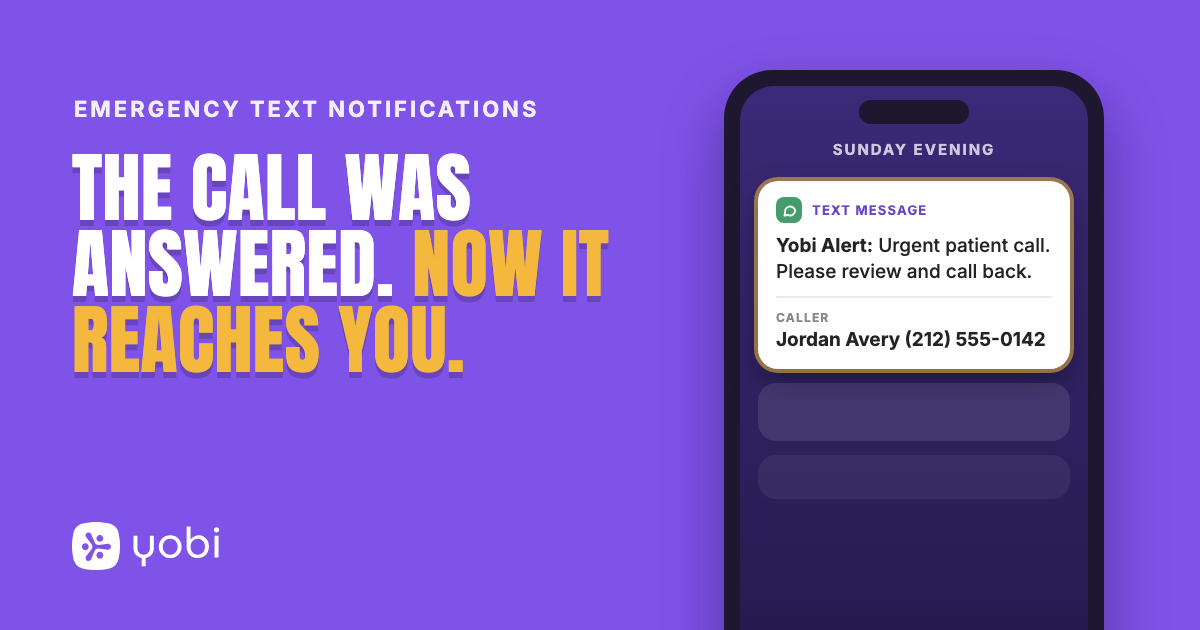
After the call ends, Dr. Sunny's phone shows a text along these lines, opening with the practice's snippet: "Yobi Alert: Urgent patient call. Please review and call back. Caller: Jordan Avery (212) 555-0142 at" and then the date and time of the call. He calls her back that evening. Monday at 8:00 am is still booked.
How it works
There are two parts, and you need both. Part 1 decides who gets the text. Part 2 decides which calls are worth one.
Part 1: add your mobile number (each person does this once)
- Open Settings, then Notifications preferences.
- Scroll to Emergency call SMS alerts.
- In Notification phone number (E.164), type your mobile number in international format, for example +15551234567, and click Send verification code.
- Type the 6-digit code from the text into Verification code and click Confirm code. The status changes to "Verified".
- Switch Emergency call SMS alerts on.
Everyone who should get alerts does this with their own number. Account admins also see Manage notifications for, where they can switch a teammate's alerts on or off. The teammate still enters and confirms their own number.
Part 2: tell your agent which calls matter
- Open AI Studio, select your agent, and click Configure.
- Go to the Skills step and find the Text Notifications card.
- Click New. In Reason, describe the situation in your own words, for example "The caller requested emergency service".
- Choose what the text will say. A snippet is a saved message in Yobi that you write once and reuse. In Message Template, pick the snippet this alert should open with, or write one with Create/Edit Snippets in the same menu.
- Add up to five reasons, then click Save & Continue to Instructions.
A few things to know about how your reasons are applied:
- The check reads what the caller said, not your agent's greeting.
- Routine calls are not meant to match. The check is told that scheduling, rescheduling, cancelling and billing questions do not count as a pain or emergency reason unless the caller describes that problem.
- Reasons apply to calls on all of your agents, not only the one you added them to.
- The text goes out after the call ends, not while the caller is still on the line.
- The caller's name appears when they are a saved contact. Otherwise the text shows their phone number.
Use cases
1. After-hours emergency calls on a weekend
A reason such as "The caller is in severe pain, is bleeding, or has swelling" means Sunday night's call reaches you on Sunday night.
2. A reason that is not clinical
The reasons are yours. "The caller says they are calling from another doctor's office" is as valid as a toothache, if that is a call you never want to sit overnight.
3. The on-call rotation
Each person controls their own switch, and admins can flip it for teammates. The dentist on call this week switches alerts on, and the one coming off call switches them off.
Why this matters for your practice
Before: Urgent calls were answered, then waited in the call log with everything else. You found out in the morning.
After: The calls that match your reasons come to your phone. The rest wait until morning.
What to know before you turn it on
- Phone calls only. Texts and chats do not trigger an alert.
- It covers calls your team did not answer. A call a person at your practice picked up does not send a text.
- Each person who gets alerts needs their own Yobi login and their own confirmed mobile number.
- Your practice's number needs business verification. Alerts are sent from your practice's Yobi number, and for texts to be delivered that number needs 10DLC registration.
- The text includes the caller's name and phone number, so you can call back without logging in.
- It is not for life-threatening emergencies. The alert arrives after the call. The ADA advises that your closed-office message tell callers with a life-threatening emergency to dial 911 or go to the nearest hospital emergency department.
Getting started
Emergency Text Notifications is available now for all Yobi customers. No upgrade required. No additional cost.
If you are already a Yobi customer, add your number in Settings, then add your reasons in AI Studio. Log in to dashboard
If you are not using Yobi yet, see how an AI receptionist answers your calls and texts you about the urgent ones. Book a Demo or call Kate at 609-507-2178.
FAQ
Does Emergency Text Notifications cost extra?
No. It is available to all Yobi customers at no additional cost.
Does the text arrive while the caller is still on the phone?
No. It is sent after the call ends. If you want urgent callers connected to a person during the call, look at Scheduled Transfers.
Can more than one person get the text?
Yes. Everyone at your practice who has confirmed a number and switched alerts on gets the text.
Does it work for texts and web chat?
No. It applies to phone calls.
Do I have to use the word "emergency" in my reasons?
No. Describe the situation in your own words. You can add up to five reasons.