It is 8:10 am on a Monday at Yobi Smiles. Dana, the office manager, opens her inbox to a weekend of missed-call notifications from Yobi. So does the hygienist, who will never return any of those calls. The front-desk coordinator, the one person who does call patients back, turned her missed-call emails off months ago and forgot.
Nobody did anything wrong. Each person set up their own alerts once, on their own, and nobody has looked at the whole picture since.
Alerts only work when the right person gets them
Yobi can alert your team in several ways: an email for a missed call or a voicemail, an email when someone assigns a teammate a task, and, for calls that cannot wait, a text. Each of those is useful to some people on your team and noise to others.
Left to each person, the only fix is to ask every teammate to log in and change their own settings, and hope they do.
An alert everyone gets is an alert nobody owns.
The fix: Team-Managed Notifications
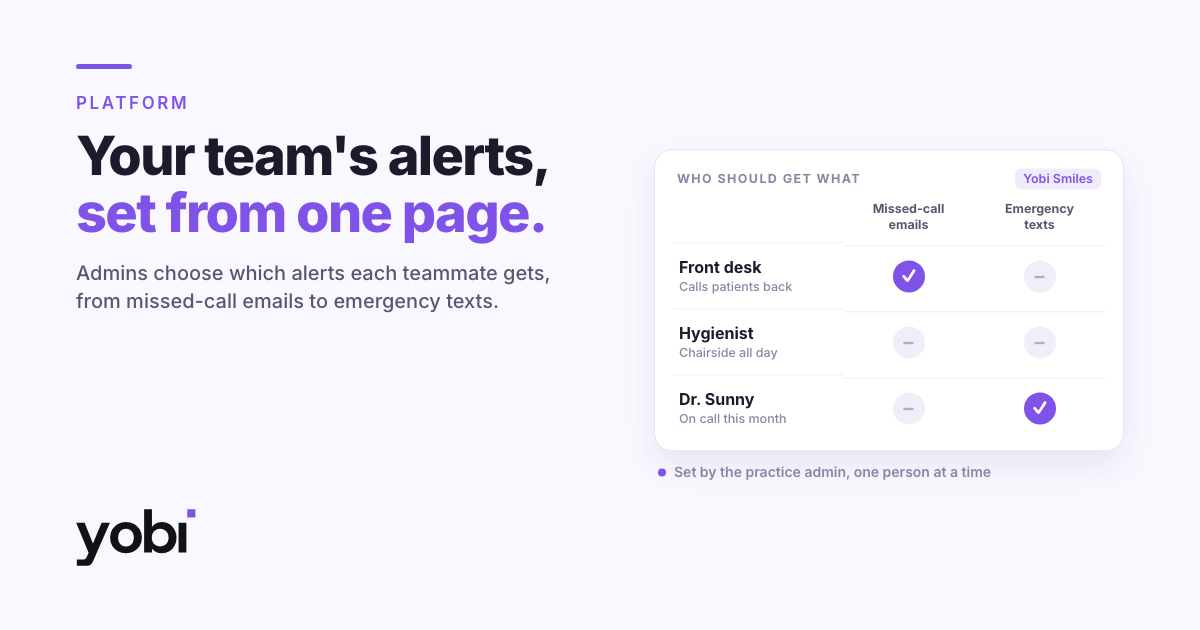
With Team-Managed Notifications, a practice admin chooses which alerts each teammate gets, from one page. Pick a person, switch their alerts on or off, and move on to the next. There is no Save button; each change is saved as you make it.
Teammates who are not admins see only their own settings.
How it works
- In the Yobi web or desktop app, open Settings, then Notifications preferences.
- Under Manage notifications for, choose a teammate. The list shows each person's name and email. Myself is your own settings.
- A yellow banner, "Editing [name]'s notification preferences", shows whose settings you are changing.
- Switch that person's alerts on or off: Weekly analytics email, Missed call notifications email, Task notifications email, Voicemail notifications email (with Allow transcription for voicemail while it is on), Online schedule notifications email and Emergency call SMS alerts.
- Choose Myself to go back to your own settings.
Only people with the Admin role in your Yobi account see Manage notifications for.
Use cases
1. The missed-call email goes to the person who calls back
Switch Missed call notifications email on for the person who returns calls, and off for the people who never will. The email stops landing in inboxes where nobody acts on it.
2. The emergency text goes to whoever is on call
When your team does not pick up and a caller's words match one of the reasons you set, Emergency Text Notifications can text your team after your Yobi AI receptionist handles the call. Once that is set up and each person has verified their own mobile number, you decide whose phone gets the text: Dr. Sunny this month, the associate next month.
3. Someone's role changes
A front-desk coordinator moves to a clinical role, or someone goes on leave. Change what they get from your own login, without asking them to update anything.
Why this matters for your practice
Before: every person sets up their own alerts once, on their own. Some get everything, some get nothing, and the office manager finds out which when a patient says nobody called back.
After: the office manager opens one page, goes through the team one person at a time, and decides who hears about what.
Yobi Smiles, Dana and Dr. Sunny are fictional, used for illustration.
What to know before you start
- It is not a lock. Teammates can still change their own settings, including turning back on something you turned off. Yobi does not tell them when an admin changes their settings, so let your team know what you changed and why.
- A missed call still reaches someone. If nobody your phone line rings has missed-call emails on, Yobi sends the email to everyone in the practice who does. Voicemail emails fall back the same way. So switching missed-call emails off for the people a call rings can send them to the rest of the team. Decide who should get them, rather than switching them off everywhere.
- You cannot add a teammate's mobile number. For emergency texts, each person enters and verifies their own number. Until they do, you cannot switch their texts on. Next to the switch, the page shows whether their number is Verified. If it says Unverified, the switch will not save, so ask them to verify their number first.
- One person at a time. There is no "apply to everyone" option.
- Web and desktop only. Make these changes in the Yobi web or desktop app, not the mobile app.
Getting started
Team-Managed Notifications is included in every Yobi plan, with nothing to set up. If you are an admin on your Yobi account, log in on the web or desktop app and open Settings, then Notifications preferences. Log in to dashboard
If you are not using Yobi yet, see how Yobi keeps the right people on your team in the loop. See It in a Demo or call Kate at 609-507-2178 to hear a Yobi AI receptionist answer.
FAQ
Who can change other people's notifications?
Only people with the Admin role in your Yobi account. Everyone else sees only their own settings.
Will my teammate know I changed their settings?
No. Yobi does not tell them, so let them know what you changed.
Can my teammate change their settings back?
Yes. Each person can still change their own settings at any time.
Can I add a teammate's mobile number for emergency texts?
No. Each person adds and verifies their own number once. After that, you can switch their emergency texts on or off. The page shows whether a teammate's number is Verified.
Can I do this from the mobile app?
No. Use the Yobi web or desktop app.
Does it cost extra?
No. It is included in every Yobi plan.